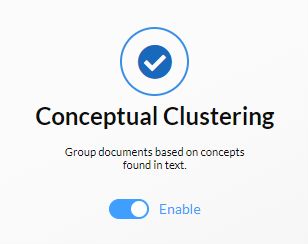
- In Analytics window, Enable “Conceptual Clustering” and Click on “Start” button.
- For “Conceptual Analytics Platform”, choose “Ayfie”.
- Enable “Conceptual Indexing” from “Select the following”. Then Click the “Next” button.
- In “Permissions” page, Choose Users/Groups and Click “Next”.
- In “Validations” page, make sure that the “Status” field for all validations is passed. Then Click the “Finish” button.
- Wait for the Conceptual Indexing Session to complete. Then, From Tools select Case Settings. In Case settings Window navigate to Review-> Database Settings-> Folder Configuration-> Analytics folder. Then select the Root folder named “Categorization” and give permissions to the necessary Users/Groups. Then click “Save Permission” and Apply the changes.
- Go To “Dynamic Folder”, Right click a folder and select “Advanced Analytics” -> “Send to Categorization Folder”-> New.
 Categorization screen will open.
 - Enter a name in “Enter Name of categorization Folder to Create” and Select a parent folder in the “Parent Folder” tree.
- Repeat the above step for each category.
- Click on the Check Box “Start Categorization After Adding Selected Example Documents”.
- Enter the threshold value in “Threshold”
- Enter value for “Maximum No of categories in which document should exist”.
- Click on the Check Box “BreakDown Categorized Documents Based On Relevance Score”.
- Now Click on “Start” button and a Categorization Session will start.
- Then, Go To “Analytics Folder”. You should be able to see the categorized documents in Newly Created Categorization Folder(s).
English
![One Discovery Logo OrangePlum.png]](https://support.onediscovery.com/hs-fs/hubfs/One%20Discovery%20Logo%20OrangePlum.png?height=40&name=One%20Discovery%20Logo%20OrangePlum.png)