- From Toolbar, Select “Search” Icon.
- In Search Screen select any Universe.
- From “Search Type” select “Search List”.
- Add your needed Search term by clicking on “Add Term to List” and repeat the above step for each search term.

- Then Click “Search” button for Search results. (This will not save the search terms.)
- To save the Search Terms do step 4 and click the “Save” Icon
 . A Pop-Up screen will open.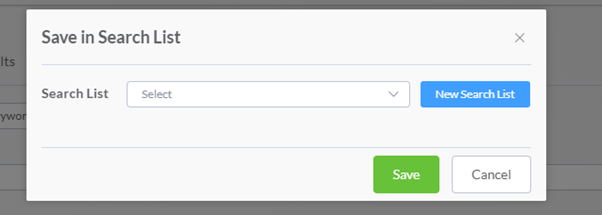
- Click “New Search List” and Enter a Name in the “List Name” and then click “Create” button.
- To import search terms from computer click “Import Search Term” and a Pop-Up screen will open.
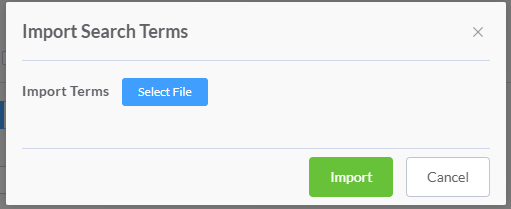
- Click “Select File” to import search terms and then click “Import” button.
- In “Search List” click “Search List Manager”
 then “Search List Manager” screen will open.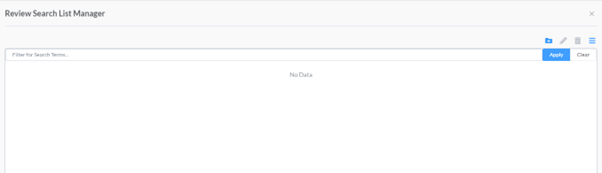
- User can also create New Search List from “Search List Manager” by clicking on “New Search List” button and a Pop-up screen will open.
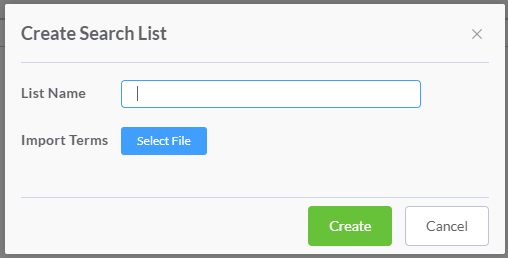
- Enter a Name in the “List Name” and Click “Select File” to import search terms then click “Create” button.
- You can see the created “Search List” in the “Review Search List Manager”.
English
![One Discovery Logo OrangePlum.png]](https://support.onediscovery.com/hs-fs/hubfs/One%20Discovery%20Logo%20OrangePlum.png?height=40&name=One%20Discovery%20Logo%20OrangePlum.png)